PCSX2 BIOS Setup Guide (2026): Download, Install & Use on PC & Android
Safe & Clean Files
All Regions Included
PCSX2 & AetherSX2
Easy Setup Guide
After installing PCSX2 and preparing your favorite PlayStation 2 game, seeing the frustrating “No BIOS Found” error can stop the entire setup process. Many players also run into issues with PS2 BIOS for PCSX2, incorrect BIOS folder locations, region compatibility, or startup errors, leaving them wondering whether their PCSX2 emulator is configured correctly.
This complete PCSX2 BIOS guide walks you through everything you need to know, from understanding what a PlayStation 2 BIOS does to setting up the correct BIOS PS2 PCSX2 configuration for smooth emulation.
Whether you’ve just completed your PCSX2 download, are installing the emulator for the first time, or need help fixing BIOS-related problems, you’ll learn how to configure the BIOS correctly, improve game compatibility, troubleshoot common issues, and enjoy an authentic PlayStation 2 gaming experience on Windows, Linux, macOS, or the Steam Deck while following the appropriate legal guidelines for BIOS ownership and use.
| Detail | Information |
| Compatible Emulators | PCSX2, AetherSX2, RetroArch, DamonPS2* |
| Supported Platforms | Windows, macOS, Linux, Android, Steam Deck |
| File Format | .bin (usually packaged inside a .zip archive) |
| BIOS Region Versions | USA (NTSC-U), Europe (PAL), Japan (NTSC-J) |
| Typical File Size | Approximately 4 MB–16 MB (depending on BIOS version and region) |
Note: While some emulators, such as PCSX2 and AetherSX2, require a PlayStation 2 BIOS ps1 for standard game emulation, support and requirements vary by emulator version.
DamonPS2 has been controversial within the emulation community for reasons unrelated to BIOS compatibility.
What Is the PCSX2 BIOS and Why Do You Need It?
The PCSX2 emulator recreates the original PlayStation 2 hardware, but it still requires a compatible BIOS for PCSX2 to boot games correctly. In simple terms, the emulator and BIOS work together: PCSX2 simulates the console, while the BIOS initializes essential hardware components such as the CPU, graphics, audio, memory cards, and controllers.
Because Sony owns the PlayStation 2 firmware, a PCSX2 BIOS download is not included with the emulator, and users must dump the BIOS from a PlayStation 2 console they legally own.
Once the BIOS is configured, you can enjoy enhanced graphics, save states, PCSX2 cheats, widescreen patches, and many other features on Windows, Linux, macOS, and PCSX2 Android alternatives. Whether you’re looking for Fallout:
Brotherhood of Steel cheats for PCSX2, learning how to move saves in PCSX2, using Auto Get Covers PCSX2, loading a PlayStation Format disc in PCSX2, or connecting a PDP Riffmaster for supported rhythm games, a properly configured BIOS provides the foundation for smooth and accurate PlayStation 2 emulation.
Download PS2 BIOS for PCSX2 — All Regions
To get the best PCSX2 emulation, it’s important to use the correct BIOS for PCSX2 that matches your game’s region. The PlayStation 2 BIOS is available in multiple regional versions, including NTSC-U (USA), PAL (Europe), and NTSC-J (Japan).
While many users search for terms like PCSX2 BIOS download or ROM BIOS PS2 PCSX2, remember that the BIOS is copyrighted firmware and should be dumped from a PlayStation 2 console you legally own.
Once your PCSX2 emulator BIOS is configured, you’ll be able to launch PS2 games, use save states, enable widescreen patches, and even play CHD games in PCSX2 for better storage efficiency.
Whether you’re using the desktop version after a PCSX2 emulator download or running PCSX2 Android alternatives, the correct BIOS improves compatibility and stability.
It also unlocks features like PCSX2 cheats, the PCSX2 Cover Downloader (also known as Auto Get Covers PCSX2) for game artwork, and the PCSX2 hide mouse cursor option for distraction-free gameplay.
You can also learn how to move saves in PCSX2, use a PlayStation Format disc with the emulator, find Fallout: Brotherhood of Steel cheats for PCSX2, connect a PDP Riffmaster for supported rhythm games, and organize your PCSX2 ROMs for a smoother gaming experience.
PCSX2 BIOS USA — NTSC-U (SCPH-39001 / SCPH-70012)
The NTSC-U BIOS is designed for North American PlayStation 2 consoles and offers the best compatibility for USA game releases. If most of your PCSX2 games are from the United States or Canada, this is the recommended BIOS version to use with your PCSX2 emulator.
- SCPH-70012 is the right pick for most US users today. It’s the slim model running firmware v1.90. Works perfectly with PCSX2 BIOS v2.0+ and covers the widest range of US titles.
- SCPH-39001 is the fat model at v1.60. Grab this if your PC is older or you’re running games from 2000–2002.
PCSX2 BIOS Europe — PAL (SCPH-50003 / SCPH-75004)
The PAL BIOS supports PlayStation 2 games released across Europe and other PAL regions. Using the correct PAL BIOS helps maintain proper video timing, language compatibility, and overall stability for European game discs and backups.
- SCPH-75004 is the best PAL version today. It’s the slim PAL model with better compatibility than the older 50003.
PCSX2 BIOS Japan — NTSC-J (SCPH-10000 / SCPH-18000)
The NTSC-J BIOS is intended for Japanese PlayStation 2 consoles and provides the highest compatibility for games released exclusively in Japan. It’s the preferred choice if you’re playing imported titles or region-exclusive releases.
- For actual emulation, SCPH-18000 runs more stably. Still NTSC-J, just from a later hardware revision.
Multi-Region BIOS Pack — All Regions in One ZIP
A multi-region BIOS collection typically includes USA (NTSC-U), Europe (PAL), and Japan (NTSC-J) firmware files in a single archive, making it easier to switch between game regions inside PCSX2. If you own PlayStation 2 consoles from multiple regions, keeping your legally dumped BIOS files together can simplify setup and improve compatibility across your game library.
BIOS File Details — What’s Inside the ZIP?
A typical PCSX2 BIOS ZIP package contains the PlayStation 2 firmware files required for the emulator to boot games. Depending on the source and region, the archive may also include ROM files, EEPROM data, and multiple BIOS versions for USA, Europe, and Japan.
After extracting the ZIP, point PCSX2 to the folder containing these files during the initial setup.
| File/Item | Description |
| BIOS (.bin) | Main PlayStation 2 firmware required to boot games |
| ROM Files | Core firmware components used by the emulator |
| EEPROM/NVM File | Stores console settings such as language, date, and time |
| Region Versions | USA (NTSC-U), Europe (PAL), Japan (NTSC-J) |
| Archive Format | ZIP (extract before using) |
| Typical Size | 4 MB–16 MB depending on BIOS version |
Best PCSX2 BIOS Version for Performance
All official PlayStation 2 BIOS versions offer similar performance because emulation speed mainly depends on your CPU, GPU, and PCSX2 settings. However, choosing a BIOS that matches your game’s region can improve compatibility and reduce boot or display issues.
| BIOS Version | Region | Recommended For |
| SCPH-39001 | USA (NTSC-U) | Excellent compatibility with North American games |
| SCPH-70012 | USA (NTSC-U) | Stable performance with newer PS2 revisions |
| SCPH-50003 | Europe (PAL) | Best for European game releases |
| SCPH-75004 | Europe (PAL) | Improved compatibility with later PAL titles |
| SCPH-10000 | Japan (NTSC-J) | Early Japanese PlayStation 2 games |
| SCPH-18000 | Japan (NTSC-J) | Better support for newer Japanese releases |
What Do SCPH Numbers Mean?
The SCPH number is Sony’s model identifier for each PlayStation 2 console revision. It helps identify the console’s hardware generation and intended region.
- SCPH-10000 – First Japanese PlayStation 2 model (NTSC-J)
- SCPH-18000 – Updated Japanese console revision
- SCPH-39001 – North American PlayStation 2 (NTSC-U)
- SCPH-50003 – European PlayStation 2 (PAL)
- SCPH-70012 – North American PS2 Slim model
- SCPH-75004 – European PS2 Slim model
- Different SCPH models contain slightly different BIOS revisions, but all are compatible with PCSX2 when matched to the appropriate game region.
Requirements for PCSX2 on Android
To run PlayStation 2 games smoothly on Android, you’ll need a compatible PS2 emulator, a legally obtained BIOS, and a reasonably powerful device. Newer processors and sufficient RAM provide a much better emulation experience, especially for demanding games.
| Requirement | Recommended |
| Operating System | Android 10 or later |
| Processor | Snapdragon 865 / Dimensity 1200 or better |
| RAM | 6 GB minimum (8 GB recommended) |
| Storage | 10 GB or more of free space |
| Graphics API | Vulkan support recommended |
| BIOS | PlayStation 2 BIOS dumped from your own console |
| Game Format | ISO or CHD |
| Controller Support | Bluetooth and USB game controllers supported |
How to Set Up PCSX2 BIOS — Step by Step
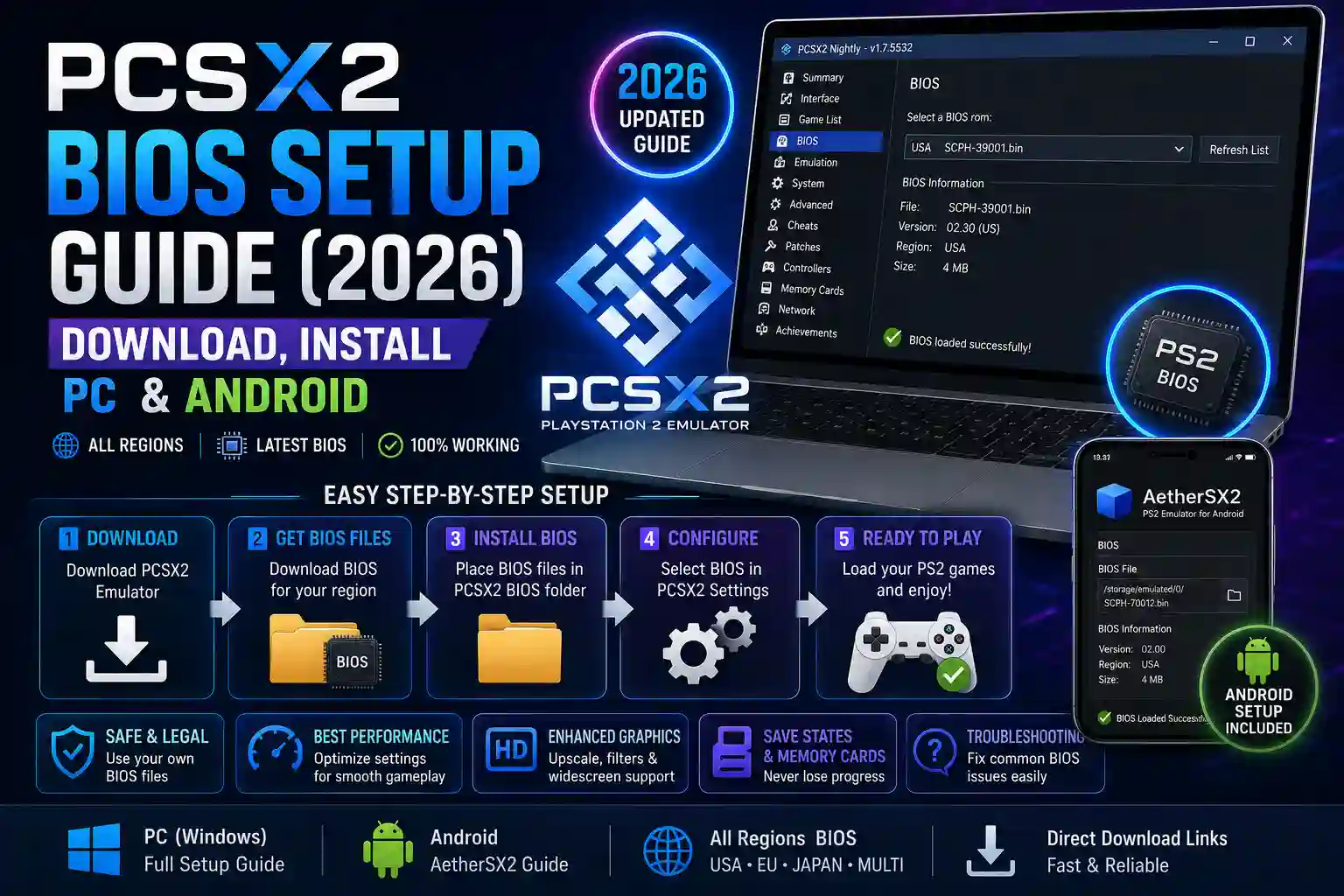
Setting up the PCSX2 BIOS only takes a few minutes and is one of the most important steps in configuring the emulator. Once you’ve legally dumped the BIOS from your own PlayStation 2 console, you simply need to place the files in the correct folder, select them inside PCSX2, and choose your preferred boot mode before launching your games.
Step 1 — Put the File in the Right Folder
After extracting your BIOS archive, locate the .bin BIOS file and copy all BIOS-related files into a dedicated folder on your computer, such as:
Documents\PCSX2\bios
You can also use any custom folder, but keeping the BIOS in a permanent location helps PCSX2 detect it correctly. Avoid leaving the BIOS inside a ZIP file—always extract it first.
Step 2 — Import the BIOS in PCSX2
- Open PCSX2.
- Go to Settings → BIOS.
- Click Browse and select the folder containing your BIOS files.
- PCSX2 will automatically scan the directory and display all detected BIOS versions.
- Choose the BIOS that matches your game region (USA, Europe, or Japan).
- Click Apply, then OK to save your settings.
If no BIOS appears, double-check that the files were extracted correctly and that you’ve selected the correct folder.
Step 3 — Fast Boot vs Full Boot
After configuring the BIOS, PCSX2 lets you choose between Fast Boot and Full Boot when starting a game.
| Boot Mode | Description | Best For |
| Fast Boot | Skips the original PlayStation 2 startup animation and loads the game directly. | Faster loading and everyday gameplay |
| Full Boot | Displays the original PS2 BIOS startup screen before launching the game. | Authentic PlayStation 2 experience and troubleshooting |
Tip: Most users prefer Fast Boot because it reduces loading time, while Full Boot is ideal if you want the classic PlayStation 2 startup animation or need to access the BIOS menu for memory card and system settings.
BIOS Error Fix — Complete Troubleshooting
Even after installing the correct PCSX2 BIOS, you may occasionally encounter startup issues or configuration errors. Most BIOS-related problems are easy to fix by checking the BIOS folder, emulator settings, or game region. Below are the most common PCSX2 BIOS issues and their solutions.
No BIOS Found Error
This is the most common error in PCSX2 and usually means the emulator cannot locate a valid BIOS file.
How to fix it:
- Make sure the BIOS files are extracted from the ZIP archive.
- Verify that the correct BIOS folder is selected in Settings → BIOS.
- Ensure the BIOS files have not been renamed or deleted.
- Click Refresh List or restart PCSX2 after adding the BIOS.
- Confirm that the BIOS file is compatible with your version of PCSX2.
Black Screen After BIOS Loads
If the BIOS starts but the game only shows a black screen, the problem is often related to the game image or emulator configuration rather than the BIOS itself.
How to fix it:
- Verify that your game ISO or CHD file isn’t corrupted.
- Update to the latest version of PCSX2.
- Switch the graphics renderer (Vulkan, DirectX 12, or OpenGL).
- Disable unnecessary speed hacks or custom patches.
- Check that the game matches the selected BIOS region when possible.
BIOS Not Detected After Moving PCSX2
If you move the PCSX2 folder to another drive or reinstall the emulator, it may no longer detect your BIOS.
How to fix it:
- Open Settings → BIOS.
- Browse to the new BIOS folder location.
- Select the folder again and apply the changes.
- Restart PCSX2 so it rescans the BIOS directory.
Keeping your BIOS files in a permanent folder, such as Documents\PCSX2\bios, helps prevent this issue.
Wrong Language / Game Won’t Progress
Some games may display the wrong language, fail to save, or freeze if the BIOS region doesn’t match the game’s intended region.
How to fix it:
- Use a BIOS that matches your game’s region (NTSC-U, PAL, or NTSC-J).
- Open the BIOS System Configuration to change the default language if needed.
- Check that your memory card is properly created and assigned.
- Reset emulator settings if you recently changed region-specific options.
Using the correct BIOS region and keeping PCSX2 updated resolves most compatibility issues and ensures a smoother PlayStation 2 emulation experience.
Setup on Every Platform
The PCSX2 BIOS setup process is similar across all supported devices. Once you have a legally obtained PlayStation 2 BIOS and a compatible emulator, you only need to select the BIOS folder during the initial setup before loading your games.
Windows 10 / 11
Windows provides the best overall experience for PCSX2 thanks to excellent compatibility and regular updates.
Setup steps:
- Install the latest version of PCSX2.
- Extract your BIOS files into a dedicated bios folder.
- Open Settings → BIOS and select the folder.
- Configure your graphics, controller, and memory cards.
- Load your PS2 game (ISO or CHD) and start playing.
macOS (Ventura / Sequoia)
PCSX2 also supports modern versions of macOS, including Ventura and Sequoia, on both Intel and Apple Silicon Macs.
Setup steps:
- Install the macOS version of PCSX2.
- Copy your BIOS files into a convenient folder.
- Select the BIOS directory during the first launch.
- Configure Metal graphics settings for the best performance.
- Launch your game and fine-tune settings if necessary.
Android (AetherSX2 / NetherSX2)
Although PCSX2 itself isn’t available for Android, AetherSX2 and NetherSX2 use the same PlayStation 2 BIOS files.
Setup steps:
- Install AetherSX2 or NetherSX2.
- Copy your BIOS file to your phone’s storage.
- Select the BIOS during the emulator’s setup wizard.
- Import your PS2 game images.
- Adjust graphics settings based on your device’s performance.
Steam Deck
The Steam Deck runs PCSX2 exceptionally well through SteamOS or Desktop Mode.
Setup steps:
- Install PCSX2 using EmuDeck or your preferred method.
- Place the BIOS files inside the designated BIOS directory.
- Refresh your emulator library if required.
- Configure controller settings.
- Launch your games directly from Gaming Mode or Desktop Mode.
Game Compatibility Quick Reference
PCSX2 has excellent compatibility with the PlayStation 2 library, and thousands of games are fully playable with the correct BIOS and emulator settings.
| Compatibility Rating | Description |
| ⭐⭐⭐⭐⭐ Perfect | Runs exactly like original hardware |
| ⭐⭐⭐⭐ Playable | Fully playable with minor graphical or audio issues |
| ⭐⭐⭐ In-Game | Boots and plays but may have noticeable problems |
| ⭐⭐ Intro | Reaches menus or intro but isn’t fully playable |
| ⭐ Broken | Fails to boot or crashes frequently |
Popular games with excellent compatibility include: Top games
- God of War
- God of War II
- Shadow of the Colossus
- Gran Turismo 4
- Final Fantasy X
- Metal Gear Solid 3: Snake Eater
- Resident Evil 4
- Kingdom Hearts II
- Grand Theft Auto: San Andreas
- Persona 4
Is It Legal and Safe?
Using PCSX2 is completely legal because it is a free, open-source PlayStation 2 emulator. However, the PlayStation 2 BIOS is copyrighted firmware owned by Sony and is not included with the emulator.
For the safest and most appropriate setup:
- Use a BIOS dumped from a PlayStation 2 console you own.
- Download PCSX2 only from its official website.
- Scan downloaded files with antivirus software.
- Avoid modified BIOS files from untrusted sources.
- Keep both your emulator and BIOS backups secure.
Following these practices helps ensure a reliable and secure emulation experience.
Five Performance Tips Worth Knowing
Even with the correct BIOS installed, a few optimizations can noticeably improve gameplay.
- Use Vulkan or DirectX 12 whenever possible for better performance on modern hardware.
- Store games on an SSD to reduce loading times and improve responsiveness.
- Use Fast Boot to skip the PlayStation 2 startup animation and launch games more quickly.
- Keep PCSX2 updated since newer versions regularly improve compatibility, graphics, and performance.
- Increase the internal resolution gradually—start at 2× or 3× native resolution and only move higher if your CPU and GPU can maintain smooth frame rates.
Conclusion
Setting up the correct PCSX2 BIOS is the key to unlocking a smooth and authentic PlayStation 2 gaming experience. While the PCSX2 emulator recreates the original PS2 hardware, it still requires a compatible BIOS to boot games correctly and deliver the best compatibility.
Whether you’ve completed your PCSX2 download or are configuring the emulator for the first time, using the right PS2 BIOS helps eliminate common issues like the “No BIOS Found” error while improving stability, game compatibility, and overall performance.
Whether you’re playing on Windows, macOS, Linux, Steam Deck, or an Android-based PS2 emulator, selecting the appropriate BIOS version for your game’s region ensures the most reliable experience. By following the setup instructions, troubleshooting tips, and best practices covered in this guide, you’ll have PCSX2 running correctly and be ready to enjoy thousands of classic PlayStation 2 games with enhanced graphics, save states, widescreen support, and other modern features on today’s hardware.