
PS2 Emulator Download for PC (PCSX2 Emulator 2026) | Complete Setup Guide
If you no longer own a functional PS2, do you miss playing your favorite games? I have experienced the desire to relive those classic PlayStation 2 games without having to deal with an outdated or malfunctioning system. To make it easier for you, I personally tested PCSX2, the greatest and most dependable PS2 emulator for PC, and recorded every step.
I’ll walk you through the process of downloading, installing, and configuring PCSX2 on Windows using clear screenshots and straightforward, step-by-step instructions. By the end, your favorite PS2 games will run smoothly on your PC with better graphics and no confusion.
Every month, thousands of users search for terms such as PCSX2 download, PCSX2 emulator download, PS2 emulator for PC, PCSX2 BIOS, PS2 BIOS for PCSX2, and PCSX2 games. Many are setting up the emulator for the first time and want a reliable guide that explains everything from installation to optimization.
What Is PCSX2 PS2 Emulator?
PCSX2 is a free and open-source PlayStation 2 (PS2) emulator that enables you to play real PS2 games on Windows, without requiring the original console.
This powerful software mimics (copies) the hardware of a real PS2, creating a virtual PS2 environment on your device. It enables you to run PS2 game files (ISOs) with several improvements, such as:
- Enhanced graphics
- Controller support
- Save states (save and load your game anytime)
- Cheat codes
PCSX2 is still under active development and continuous improvement, and it already supports a large portion of the PS2 game library with excellent compatibility and performance.
To start using PCSX2, you’ll need a PS2 BIOS file and your preferred PS2 game ISO files PS1. Once set up, you can enjoy your favorite titles smoothly and hassle-free, all without the need for a physical PS2 console.
Why Choose PCSX2?
There are several PS2 emulators available, but PCSX2 has consistently remained the most mature and feature-rich option.
Here are some of the reasons gamers choose it:
Excellent Compatibility
PCSX2 supports a large library of PlayStation 2 titles, with many games being fully playable. Ongoing development continues to improve compatibility and fix issues.
Better Graphics Than Original Hardware
Unlike the original console, PCSX2 can render games at higher internal resolutions, making them look much sharper on modern displays. Features such as texture filtering, anti-aliasing, and widescreen patches can significantly enhance visual quality.
Save States
Save your progress at almost any point in a game and resume exactly where you left off, without relying solely on in-game save points.
Modern Controller Support
PCSX2 works with many controllers, including Xbox, PlayStation, and other XInput-compatible gamepads. If you’ve wondered how can I add an Xbox controller to PCSX2, the emulator includes straightforward controller mapping options that make setup simple.
Performance Improvements
Many games can run more smoothly than they did on original hardware thanks to modern CPUs and GPUs, configurable speed hacks, and renderer improvements.
Active Development
PCSX2 continues to receive updates that improve stability, compatibility, performance, and user experience.
PCSX2 Emulator Features
PCSX2 isn’t just an emulator; it’s a powerful tool with lots of features that make playing PlayStation 2 games on your PC better. Here are its specific features:
Runs Most PS2 Games Smoothly
PCSX2 offers excellent compatibility and can run thousands of PlayStation 2 games with stable performance on modern Windows, Linux, and macOS systems. With the correct PS2 BIOS and emulator settings, many titles play just like they do on the original console.
Regular Updates and Performance Enhancements
The PCSX2 development team frequently releases updates that improve game compatibility, fix bugs, and boost overall emulator performance. These optimizations help users enjoy smoother gameplay and better stability across different hardware.
Enhanced Graphics and Resolution Options
PCSX2 allows you to upscale internal resolution, improve textures, enable anti-aliasing, and apply advanced graphics enhancements. These features make classic PS2 games look significantly sharper than they did on the original PlayStation 2 console.
Game-Specific Settings and Fixes
The emulator includes game-specific patches and configurable settings to resolve graphical glitches, audio issues, and performance problems. This flexibility helps maximize compatibility with a wide range of PS2 game titles.
Customizable Controls and Controller Support
PCSX2 supports keyboards, mice, Xbox controllers, PlayStation controllers, and many third-party gamepads. Users can fully customize button mapping and controller profiles for a comfortable gaming experience.
Save and Load Anytime (Save States)
Save States let you save your game instantly at any point and resume exactly where you left off later. This feature is especially useful for difficult missions, boss fights, and long gameplay sessions.
Widescreen and Fullscreen Support
PCSX2 supports both fullscreen mode and widescreen patches, allowing classic PS2 games to fit modern 16:9 displays. The result is a more immersive gaming experience with improved visual presentation.
Built-in Recording and Screenshot Tools
The emulator includes built-in tools for capturing gameplay screenshots and recording video without relying on third-party software. These features make it easy to share memorable gaming moments and create gameplay content.
Cheat Code Support (.pnach Files)
PCSX2 supports .pnach cheat files, enabling players to activate cheats, gameplay modifications, and fan-created patches. This feature allows users to customize their gaming experience while maintaining compatibility with supported PS2 games.
What are the System Requirements of PCSX2 Emulator for Windows?
Choosing the right hardware ensures smooth gameplay and better graphics. While PCSX2 can run on modest systems, stronger hardware allows higher resolutions and improved performance.
PCSX2 System Requirements
| Component | Minimum Requirement | Recommended Requirement |
|---|---|---|
| Operating System | Windows 10 (64-bit) or later | Windows 11 (64-bit) |
| Processor (CPU) | Modern 64-bit processor with AVX2 support | Recent multi-core CPU with strong single-core performance |
| Memory (RAM) | 8 GB | 16 GB or more |
| Graphics (GPU) | DirectX 12, Vulkan, or Metal-compatible GPU (platform dependent) | Modern dedicated graphics card with Vulkan or DirectX 12 support |
| Storage | 5 GB of available disk space | SSD with at least 10 GB of free space |
| Display | 720p resolution or higher | 1080p or 1440p monitor |
Minimum Requirements: These specifications are suitable for basic gameplay at native or slightly increased resolution and provide a stable experience for many compatible PS2 games.
Recommended Requirements: These specifications are ideal for HD upscaling, enhanced graphics, widescreen patches, smoother frame rates, faster loading times, and the best overall PCSX2 emulator performance.
How to Download PCSX2 on Windows and macOS (Official Installer Method)
When downloading any emulator, always use the official PCSX2 distribution. This helps ensure you receive the latest features, bug fixes, and security updates while avoiding modified or unofficial packages.
Important: PCSX2 does not include PlayStation 2 BIOS firmware. You’ll need to use a BIOS dumped from a PlayStation 2 console that you own, which is discussed later in this guide.
Step-by-Step: Download for Windows
Follow these steps to install PCSX2 on Windows:
Step 1: Visit the Official PCSX2 Website
Download the latest stable or nightly release from the official PCSX2 project.
Step 2: Choose the Windows Version
Select the installer that matches your version of Windows.
Step 3: Download the Installer
Save the installation file to your Downloads folder.
Step 4: Run the Installer
Launch the installer and follow the on-screen instructions.
Step 5: Choose an Installation Location
You can keep the default folder or select another location on your computer.
Step 6: Complete Installation
Once installation is complete, launch PCSX2.
The first launch opens the initial configuration wizard, where you’ll configure folders, controllers, graphics settings, and your own BIOS.
Step-by-Step: Download for macOS
Installing PCSX2 on macOS is equally straightforward.
Step 1: Download the macOS Build
Choose the macOS version compatible with your system.
Step 2: Open the Downloaded File
Mount the downloaded package if necessary.
Step 3: Move PCSX2 to Applications
Drag the application into the Applications folder.
Step 4: Launch the Emulator
Open PCSX2 from Applications. Depending on your macOS security settings, you may need to confirm that you want to open the application.
Step 5: Complete Initial Setup
Follow the setup wizard to configure graphics, controllers, and your legally obtained PlayStation 2 BIOS.
How to Download PS2 Emulator for PC (PCSX2)
Getting the PCSX2 emulator is free. Always download it from the official website to get an updated, malware-free, clean file. Follow the steps below:
- Access the PCSX2 Official Website, https://pcsx2.net/.
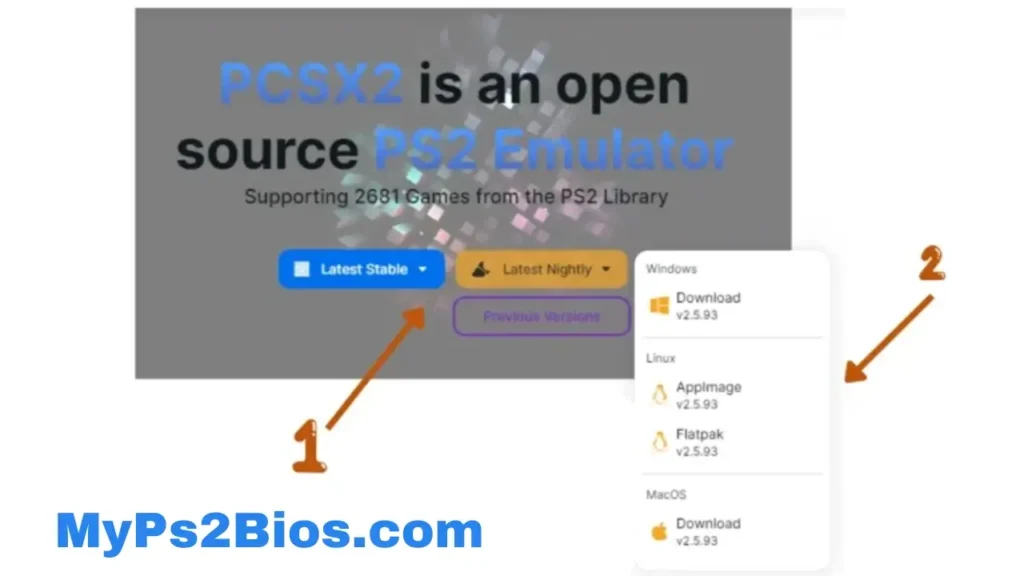
- Click the link, and you will get the page below. Download the Latest Stable or the Latest Nighty build. For beginners, the Latest Stable is recommended.
- Click your operating system(Windows, Linux, macOS), and the download will start automatically.
- Make sure that your system meets the system requirements to run PCSX2 smoothly.
How to Install PCSX2 PS2 Emulator on PC (Windows)
Once the emulator file has finished downloading, extract the folder using WinRAR or 7-Zip. You’ll see the following files, as shown in the screenshot below.
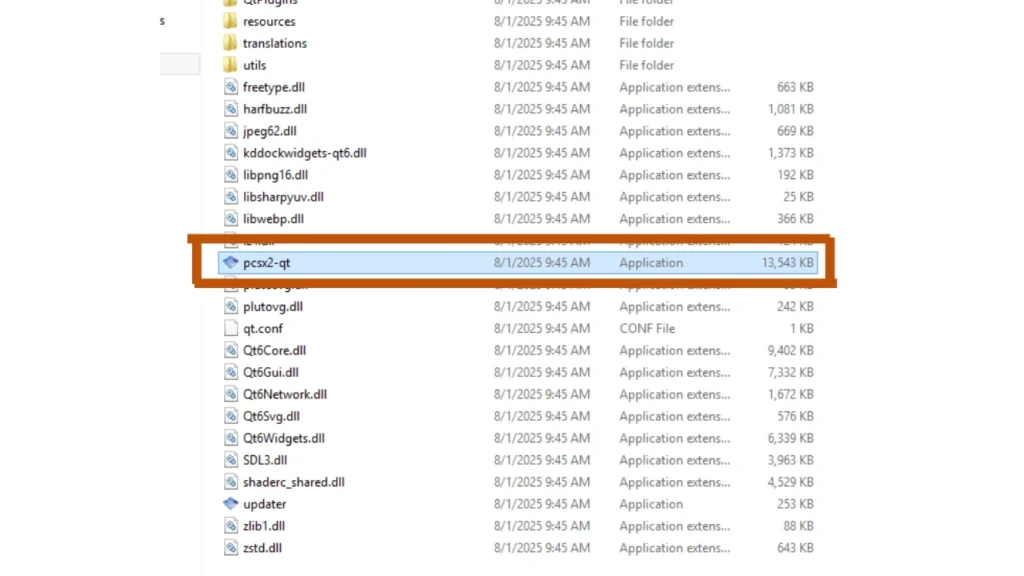
Run/Open the pcsx2-qt file. You will get a welcome page.
Leave the language set to the default option, which is English. You can also change the theme and select the one you prefer.
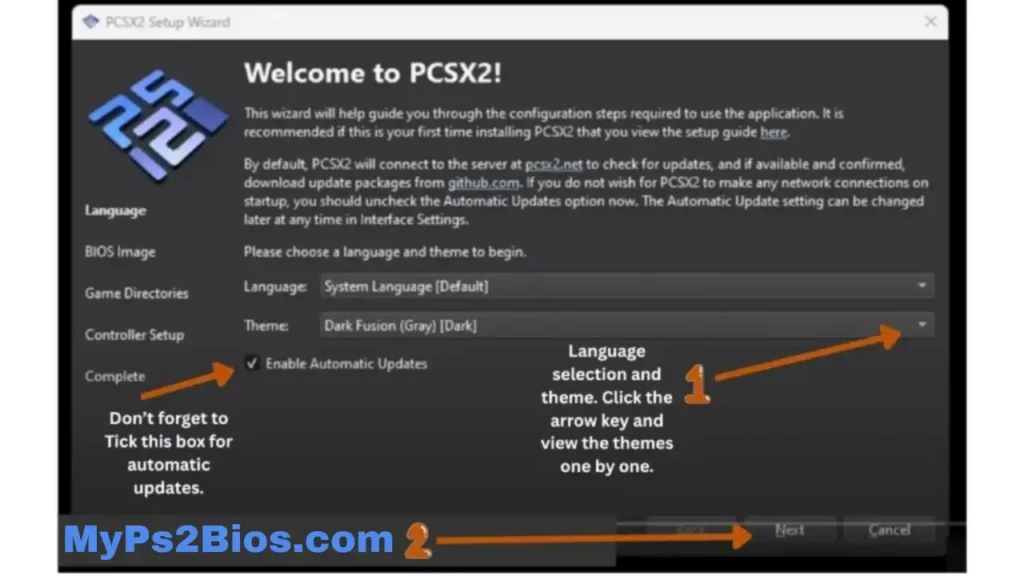
Tick the box next to “Enable Automatic Updates” to get the latest updates, then click Next to continue to the next screen.
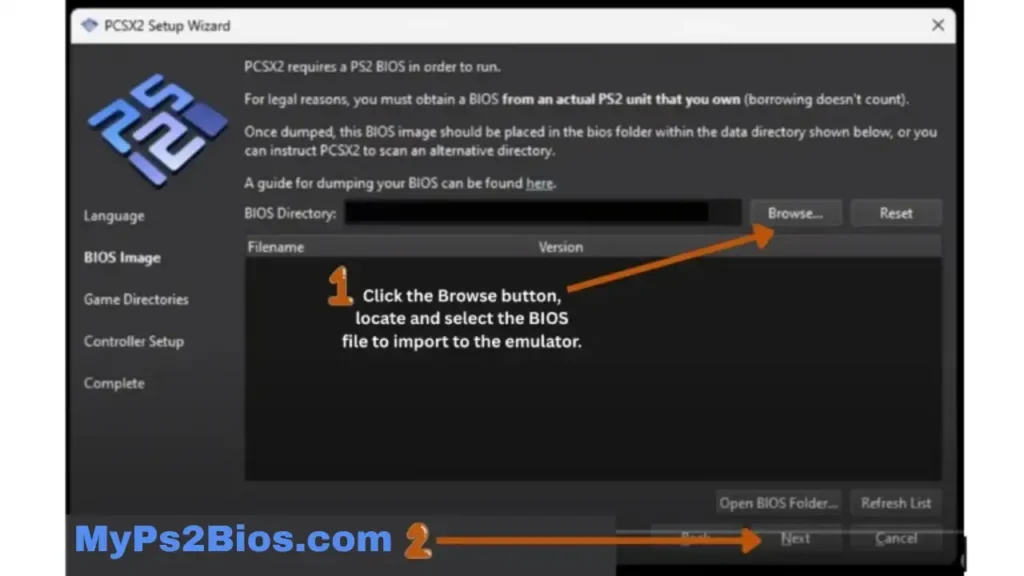
Here, we need to add the BIOS file to the emulator. It is the file you have downloaded from this site.
Click the browser button and go to the folder where the PS2 BIOS file is present. Select the full pack file to upload it here.
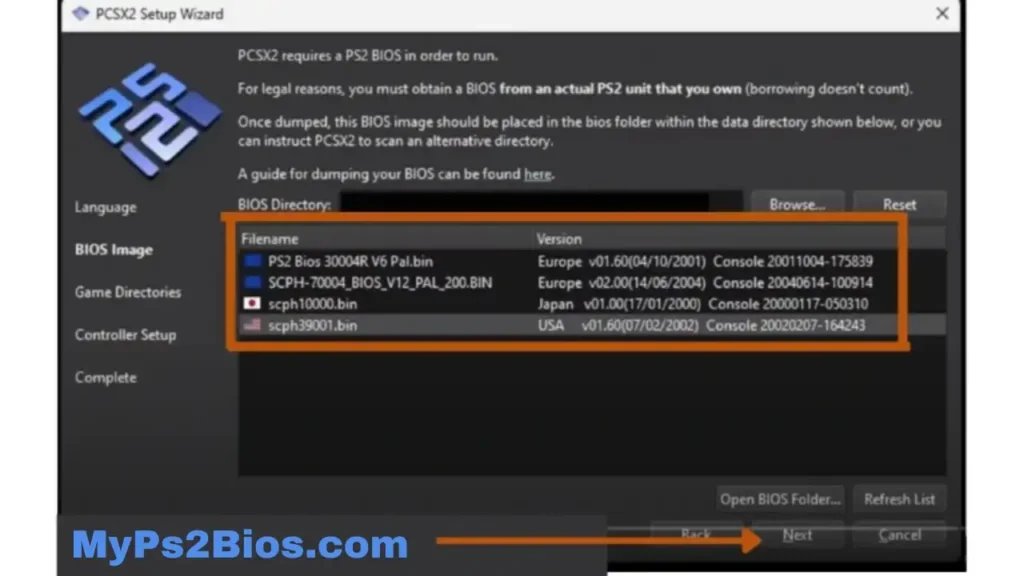
All four versions of the PS2BIOS file will be uploaded. Select the one that you want or is related to your region, and then click the Next button. You can also select all.
Now, select the folder where your PS2 ROM files are stored. These files are the digital versions of your PS2 games. Click Add, browse to the location of your ROMs, and choose the ones you want to play on your PC.
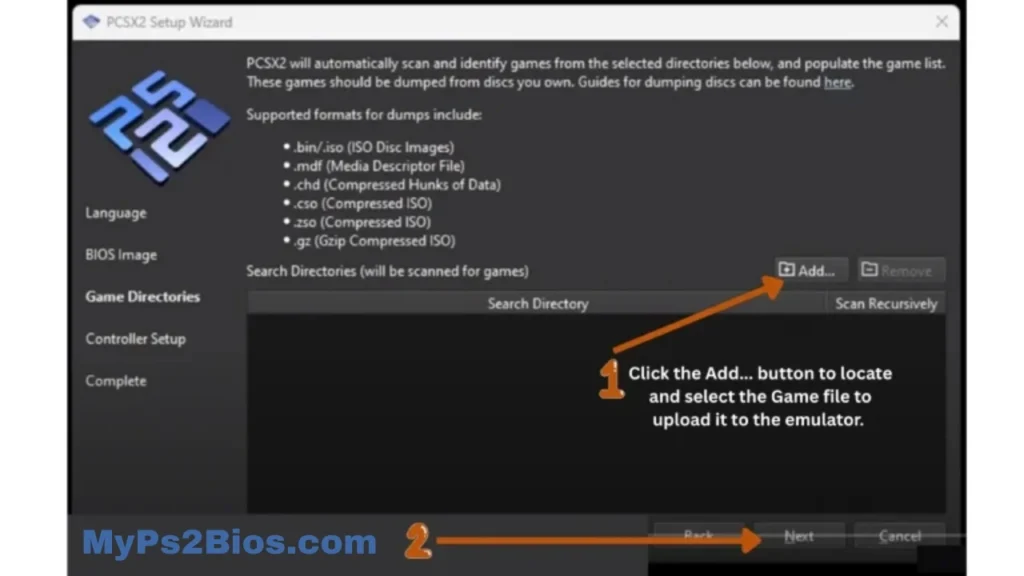
Click the Add button, choose your PS2 ROMs folder, and then click Next. A pop-up window will appear on the screen.
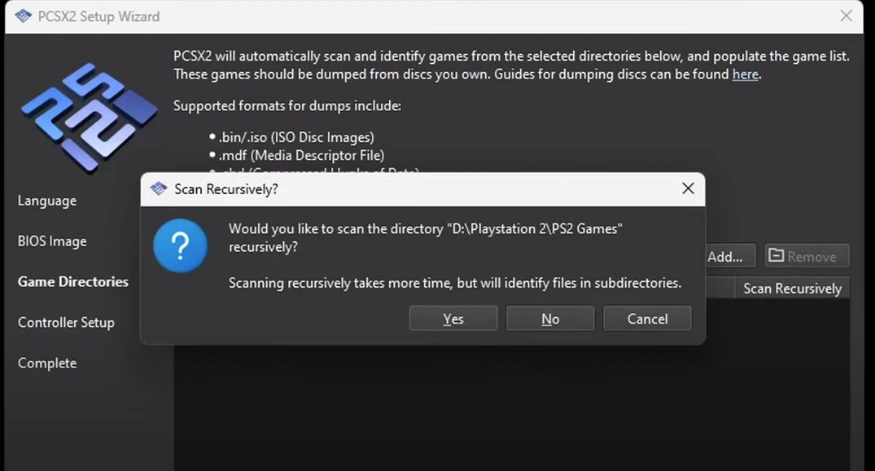
Click Yes to scan the file for a clean and safe setup.
In the next step, configure your controllers for Port 1 and Port 2. Port 1 is assigned to Controller 1 by default, but you can also enable Port 2 if needed. Make sure to set Controller Port 1 to DualShock 2 for the best compatibility.
Then, click Next, followed by Finish. The installation process is now complete. Within a few seconds, the emulator will load all your PS2 ROMs automatically.
How to Set Up PCSX2 Emulator for the First Time?
Once you’ve installed PCSX2, you’re only a few steps away from playing your favorite PlayStation 2 games. The first-time setup is simple, but configuring everything correctly will ensure the best compatibility and performance.
Whether you’re using Windows or macOS, the setup process is nearly identical.
Setting Up PCSX2 Emulator
Interface Set Up
If you want your games to launch in full-screen mode every time you start them, do the following:
- Go to the Settings> interface option.
- Check the box before Start Fullscreen as shown in the image below.
Graphics Configuration
PCSX2 supports multiple graphics backends.
The most commonly used are:
| Renderer | Best For |
| Vulkan | Best overall performance |
| Direct3D 12 | Excellent for Windows |
| Metal | Best for macOS |
| OpenGL | Older hardware compatibility |
For most users in 2026, Vulkan delivers the best balance of speed and compatibility.
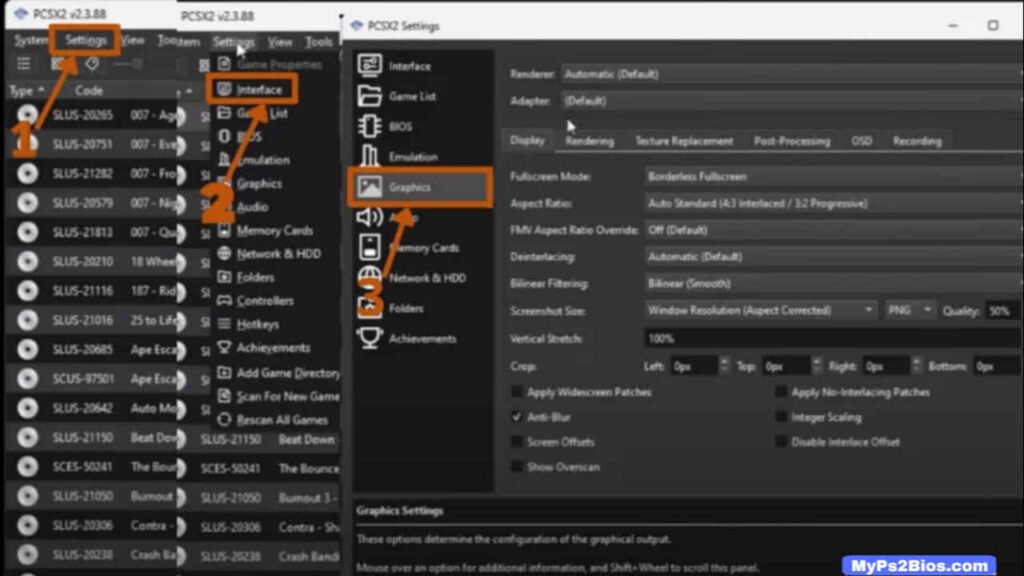
- Select the Settings option.
- Then, click the Graphics option. You will get a new dedicated window for graphics configuration and settings.
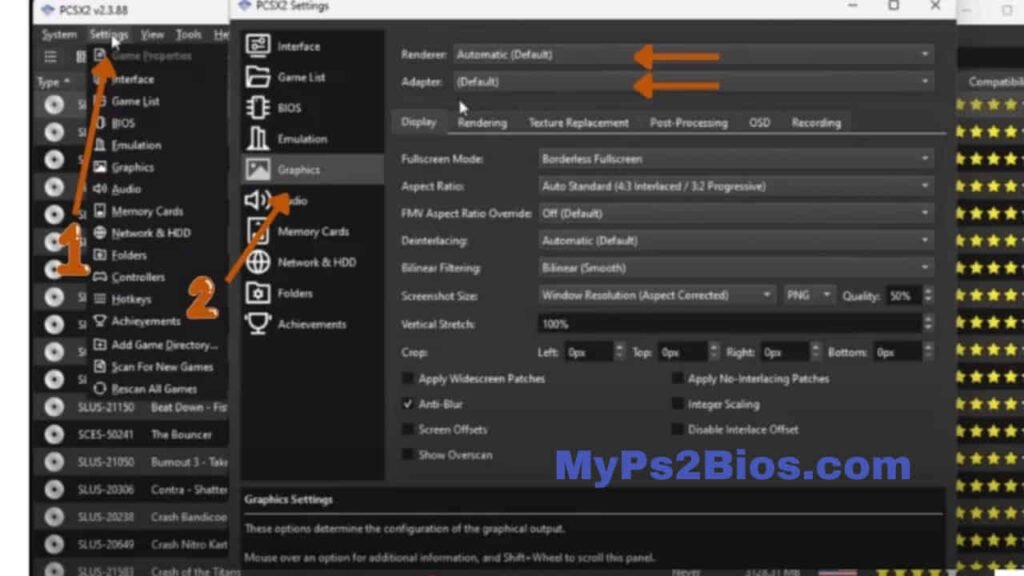
Click the renderer section. There will be multiple options. Select Vulkan or Open GL for better performance.
Select the Vulkan option if your PC has an updated Graphics card. It means that it was released recently, within the last 4 to 5 years. You will get the best performance in this case.
If your PC has an old graphics card, then select Open GL for best performance. You can also choose Direct3D 11 or Direct3D 12. Try each option one by one, and choose the one that gives you the best performance and feels most comfortable.
Click the Adapter option and select your dedicated graphics card that is present in your PC.
Aspect Ratio for Display
Leave the aspect ratio set to Auto (Standard 4:3); this is how PS2 games were originally designed to be played. However, you can also try the Widescreen (16:9) option for a more immersive experience.
Keep in mind that some games may appear slightly stretched when using widescreen mode. To fix this, go to Settings > Game List, then right-click on the specific game to adjust its display settings.
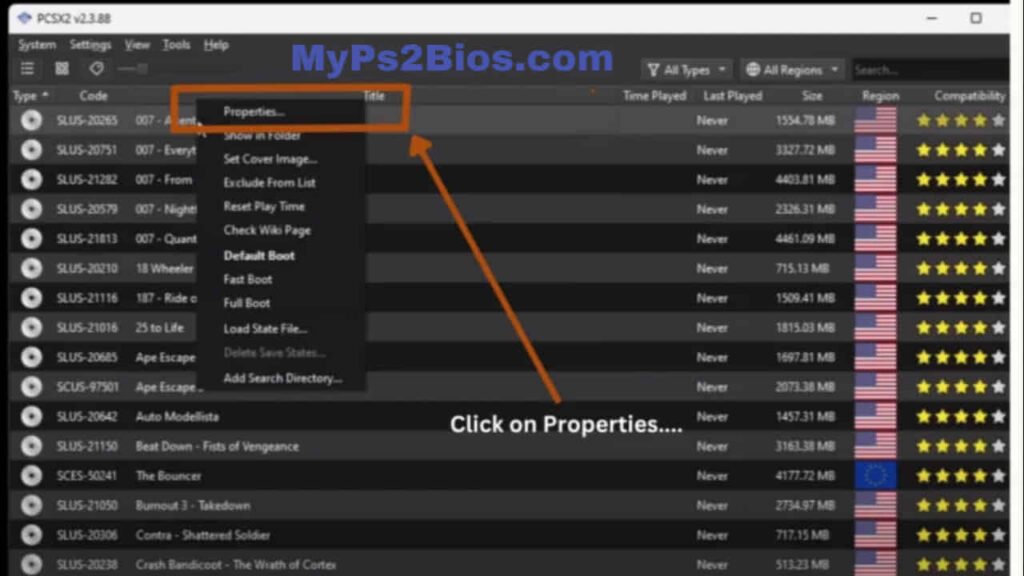
When you right-click on a game, multiple options will appear. Click the properties. A new page will appear as shown below.
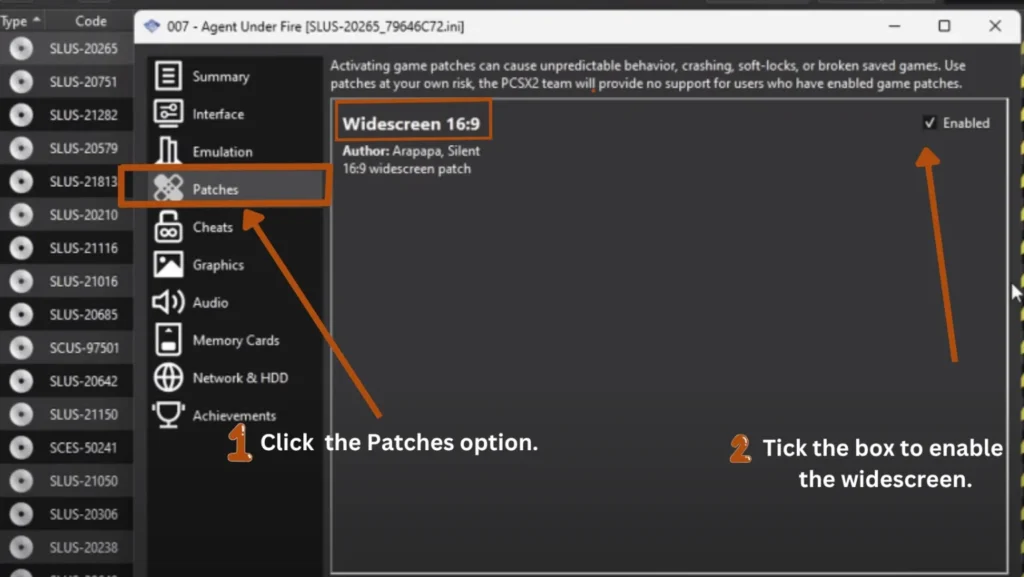
First, click the Patches option. If a Widescreen (16:9) patch is available, tick the box to enable it for the specific game. This will resolve the stretching issue.
Note that not all games have widescreen patches. If a patch is unavailable, switch back to Auto (Standard 4:3) to avoid distorted or stretched graphics.
Controllers Configuration
PCSX2 supports almost every modern controller.
Compatible devices include:
- Xbox Series Controller
- Xbox One Controller
- Xbox 360 Controller
- PS4 DualShock Controller
- PS5 DualSense Controller
- Generic USB controllers
Many users search for how to add an Xbox controller to PCSX2. Fortunately, the process is simple:
- Connect your controller.
- Open Settings → Controllers.
- Select Automatic Mapping if available.
- Test each button.
- Save the profile.
No third-party software is required for most XInput-compatible controllers.
Controllers are external tools that are used to give commands to the game. Like moving a character, press a button to jump, attack, or perform actions.
PCSX2 allows you to assign your keyboard or mouse to the buttons of a PlayStation 2 controller. It enables you to play PS2 games on your laptop without an external controller. But playing PS2 games with external controllers makes it more interesting. It feels more natural, more comfortable, and more fun.
When we insert it or connect via Bluetooth, the system automatically detects it. But the emulator will not detect it automatically. It will not start using it until you configure it.
Here is how to configure the controllers with the PCSX2 emulator:
- Go to the Settings, and click the Controllers option.
- A dedicated controller page will be displayed on the screen. There are two controllers:
- controller 1
- controller 2.
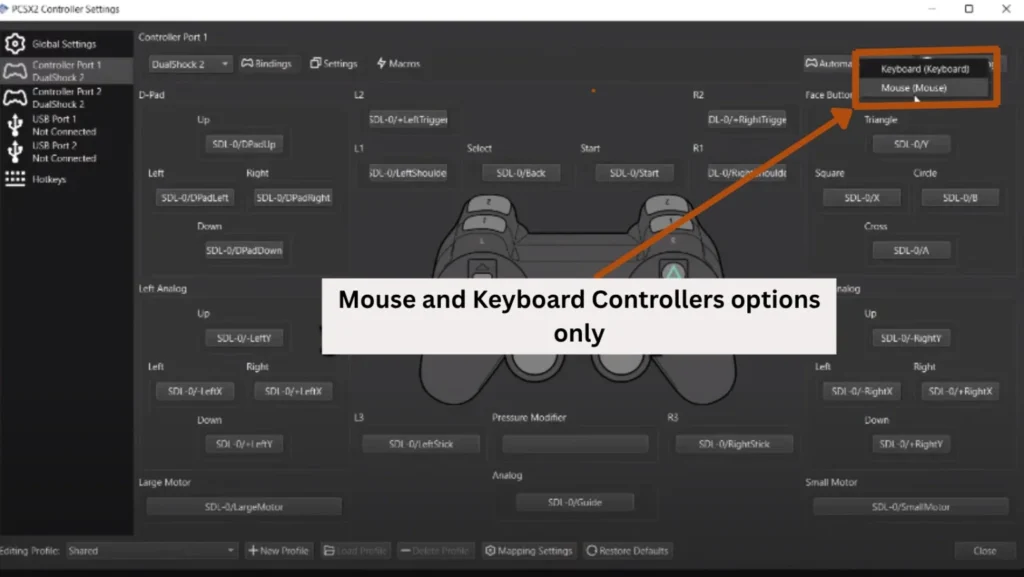
- Click on the Automatic Mapping.
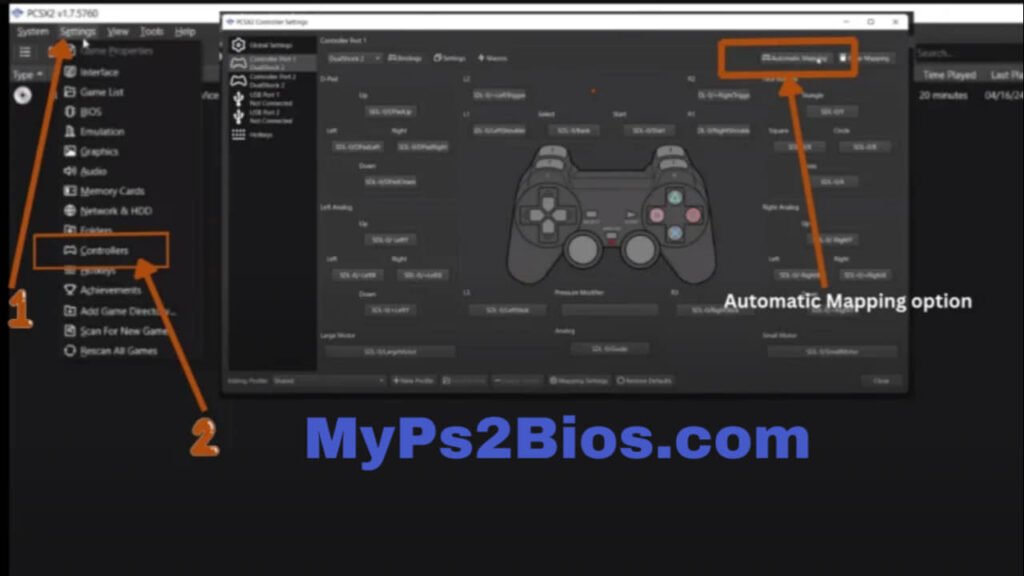
There will be only two options: keyboard and mouse, if we don’t have an external controller connected.
If you connect an external controller, click on the Automatic Mapping option, now it will show that controller as well. Select it for configuration. In our case, there is SDL-0 (XInput Controller).
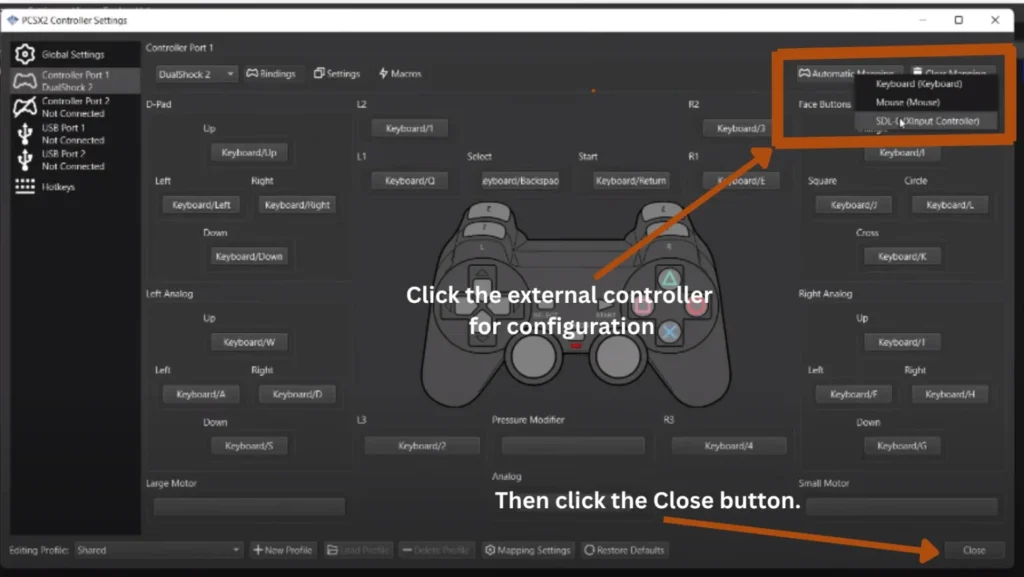
This is how you can configure an external controller with the PCSX2 emulator. Now, you can play the game with an external controller.
Upload PS2 Games to PCSX2 Emulator
The latest version of PCSX2 includes a dedicated folder for your uploaded games. You can add a new game, remove an existing one, or scan for newly added games, either individually or all at once. Here’s how to add/upload a game:
Go to Settings, and click the Game List option.
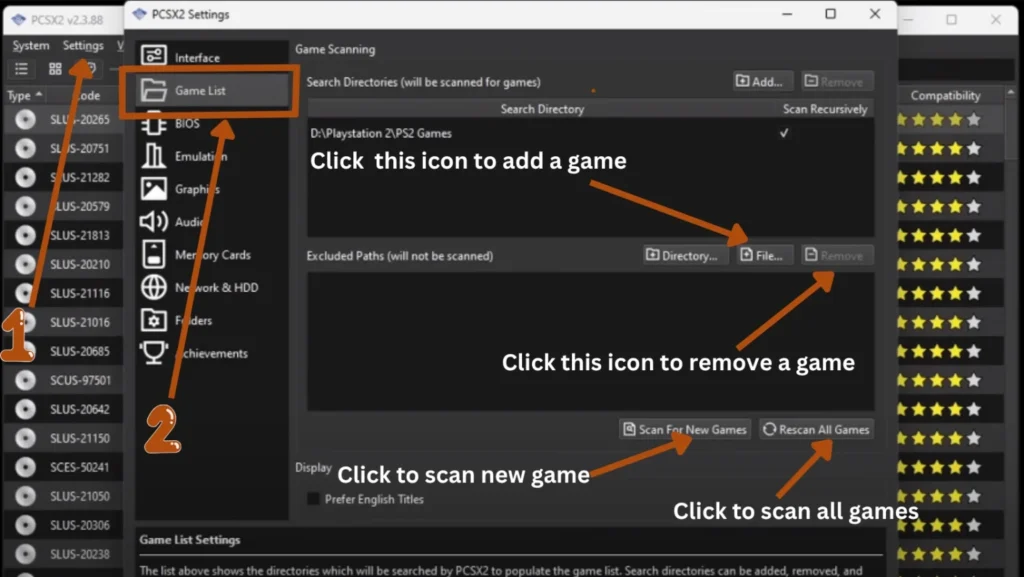
Select the + icon to add/upload games, and the -icon to remove a game from the games directory.
Click the Scan For New Games button to only scan the newly uploaded game, or click the Rescan All Games button to scan all uploaded games.
Play PS2 Games on PC Using PCSX2
- Open the PCSX2 Emulator after completing the BIOS setup.
- Go to Settings and configure your preferred graphics, controller, and audio options if needed.
- Open the Game List section and select your configured Games Directory.
- If your games don’t appear, click Add Game Directory and choose the folder containing your PS2 ISO files.
- Double-click any game in the list to launch it and start playing your favorite PlayStation 2 games.
- If you experience graphical glitches or performance issues, switch the Graphics Renderer (such as Vulkan, DirectX 12, or OpenGL) in the Graphics settings and restart the game.
Note: Different PS2 games perform better with different renderer backends. If you encounter visual artifacts, black screens, or slow performance, try another renderer for improved compatibility.
How to Get PS2 Games for PCSX2
To play games with PCSX2, you’ll need PS2 game backups in ISO format. An ISO is a digital copy of your original PlayStation 2 game disc that the emulator can read and run.
The safest and most reliable way to obtain PS2 games is by creating ISO backups from PS2 discs you legally own using disc-imaging software such as ImgBurn or similar tools. Once your ISO files are ready, place them in your designated Game List folder and let PCSX2 scan the directory automatically.
For security and legal reasons, avoid downloading PS2 games from unofficial or unverified websites. Unauthorized downloads may infringe copyright laws and can expose your computer to malware, viruses, or corrupted game files. Using legally created ISO backups ensures a safer, more stable, and more reliable
PCSX2 Features You’ll Love
PCSX2 has evolved into much more than a simple emulator. It offers modern features that enhance both convenience and gameplay.
High-Resolution Rendering
Render games far beyond the original PlayStation 2 resolution for sharper visuals.
Save States
Save and load instantly at almost any point in a game.
Fast Boot
Skip the PlayStation 2 startup animation for quicker game launches.
Widescreen Support
Play compatible games in modern aspect ratios.
Controller Customization
Map buttons, create profiles, and use a wide variety of controllers.
Screenshot Capture
Capture high-quality screenshots directly from your games.
Achievement Support
Some community integrations allow achievement-style challenges for classic games.
Cheat Support
Many users look for PCSX2 cheats or even game-specific searches like Fallout Brotherhood of Steel cheats for PCSX2.
Troubleshooting Common Issues
Some users may experience minor problems when using PCSX2, even with proper setup. Here are typical remedies:
- In Settings>Graphics, check the renderer. If Vulkan is sluggish, try Direct3D11 or OpenGL.
- If the game lags, reduce the resolution or turn off improvements like anti-aliasing.
- Try changing USB ports or updating drivers if a controller isn’t detected.
- In widescreen mode, some games might appear stretched. You can either go back to Auto (4:3) or activate the Widescreen patch for that game.
- Verify that the right BIOS is chosen in Settings> BIOS and that your BIOS files are properly located in the BIOS folder.
- Make sure there are no corrupted ISO files.
For better game compatibility, bug fixes, and increased stability, always keep PCSX2 updated to the most recent version.
Even with proper setup, you may occasionally encounter problems. Here are some of the most common issues and how to resolve them.
Game Doesn’t Start
Possible causes include:
- BIOS not configured correctly
- Unsupported or damaged game image
- Incorrect emulator settings
- Outdated PCSX2 version
Solutions:
- Verify your BIOS configuration.
- Update PCSX2.
- Test another compatible game.
- Reset graphics settings to their defaults.
Low Frame Rate
If your games feel slow:
- Lower the internal resolution.
- Switch to Vulkan or Direct3D 12.
- Close unnecessary background programs.
- Update your graphics drivers.
- Disable demanding enhancements on lower-end hardware.
No Sound
If audio isn’t working:
- Check your system volume.
- Verify the correct audio output device is selected.
- Restart the emulator.
- Update your sound drivers if necessary.
Controller Not Working
If your controller isn’t detected:
- Disconnect and reconnect it.
- Restart PCSX2.
- Open the controller settings and remap buttons.
- Ensure your operating system recognizes the controller.
This usually resolves issues with Xbox, PlayStation, and most USB controllers.
Alternative PS2 Emulators (for Comparison)
Alternative PS2 Emulators (for Comparison)
Although PCSX2 is the leading choice, a few alternatives exist.
| Emulator | Platform | Best For |
| PCSX2 | Windows, Linux, macOS | Best overall compatibility and features |
| AetherSX2 | Android | High-quality mobile emulation (where available) |
| Play! | Multiple platforms | Simplicity and experimental development |
For desktop users, PCSX2 remains the most complete and actively maintained option.
Tips for the Best PS2 Experience on PC
To get the most out of your setup:
- Keep PCSX2 updated.
- Use your own PlayStation 2 BIOS.
- Store games on an SSD for faster loading.
- Experiment with graphics settings to match your hardware.
- Use save states alongside regular memory card saves.
- Keep graphics drivers up to date.
- Create separate game profiles for demanding titles.
- Back up your memory card files periodically.
These practices help ensure a stable, enjoyable experience across a wide range of games.
Final Thoughts
If you’re looking for the best way to enjoy PlayStation 2 games on a modern computer, PCSX2 continues to be the top choice in 2026. With active development, excellent compatibility, improved graphics, widescreen support, save states, and extensive controller customization, it delivers an experience that often surpasses the original hardware while preserving the feel of classic PS2 gaming.
Setting up PCSX2 may seem challenging at first, especially when it comes to understanding the PS2 BIOS. However, once you know that the BIOS should come from a PlayStation 2 console you own and complete the initial configuration, the rest of the process is straightforward. From there, you can enjoy your legally owned PlayStation 2 games with enhanced visuals, smoother performance, and modern quality-of-life features.
Whether you’re replaying timeless classics or discovering the PS2 library for the first time, PCSX2 provides a flexible and reliable platform for preserving one of gaming’s greatest generations. Keep the emulator updated, experiment with graphics settings that suit your hardware, and remember to back up your virtual memory cards so your progress is always safe.